

Connecting to a Backend
On the home launcher, Agent Canvas remembers the repository and branch you last picked for each cloud backend. The remembered selection is validated in the background; a selection that can no longer be used is dropped silently, and a clear control removes the current one. The selection is stored per backend. Any Agent Canvas frontend can connect to any Agent Canvas backend. Use the backend switcher in the UI to open Manage Backends, where you can add, edit, or remove entries. Each entry stores a display name, host URL, and an API key for authentication.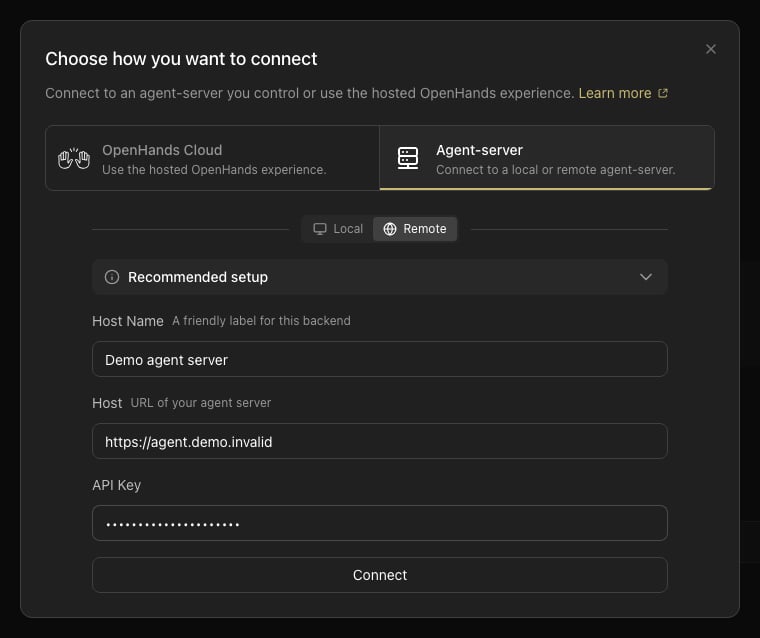
Recommended Setups
Default local
Use for quick local work on your machine. Run
agent-canvas and a local backend is created
automatically.Remote backend
Use for a separate local process or container. Deploy the backend services, then add their host
URL and API key in
Manage Backends.VM / self-hosted
Use for an always-on backend, more powerful hardware, or team-shared access.
Cloud or Enterprise
Use for managed backend and sandbox infrastructure. Connect from
Manage Backends.DigitalOcean Managed Agents
Use for on-demand, isolated cloud sandboxes that pause when idle.
DigitalOcean Managed Agents
The Providers tab in Add Backend connects Agent Canvas to DigitalOcean Managed Agents. Sign in with a DigitalOcean personal access token, then create or open an OpenHands agent. Each session of that agent runs in its own DigitalOcean sandbox and appears in Agent Canvas as a separate backend. The Providers tab is available in the desktop app, and in the web build when its server setsMARS_WEB=1.
Removing a DigitalOcean backend from
Manage Backends offers Disconnect only, which leaves the session running and billing until it pauses, or Stop session, which deletes its sandbox. See Disconnecting vs. Stopping.