OpenHands utilizes a large language model (LLM), which may generate responses that are inaccurate or incomplete.
While we strive for accuracy, OpenHands’ outputs are not guaranteed to be correct, and we encourage users to
validate critical information independently.
Prerequisites
- Access to OpenHands Cloud.
Installation Steps
Install Slack App (only for Slack admins/owners)
Install Slack App (only for Slack admins/owners)
This step is for Slack admins/owners
- Make sure you have permissions to install Apps to your workspace.
- Click the button below to install OpenHands Slack App

- In the top right corner, select the workspace to install the OpenHands Slack app.
- Review permissions and click allow.
Working With the Slack App
To start a new conversation, you can mention@openhands in a new message or a thread inside any Slack channel.
Once a conversation is started, all thread messages underneath it will be follow-up messages to OpenHands.
To send follow-up messages for the same conversation, mention @openhands in a thread reply to the original message.
You must be the user who started the conversation.
Example conversation
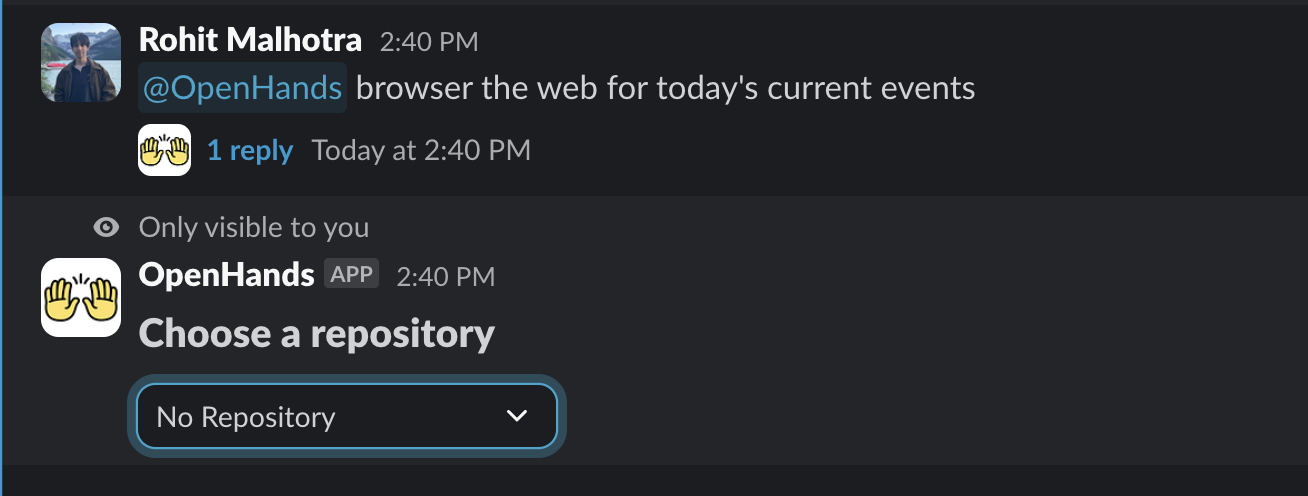
Start a new conversation, and select repo
Conversation is started by mentioning@openhands.
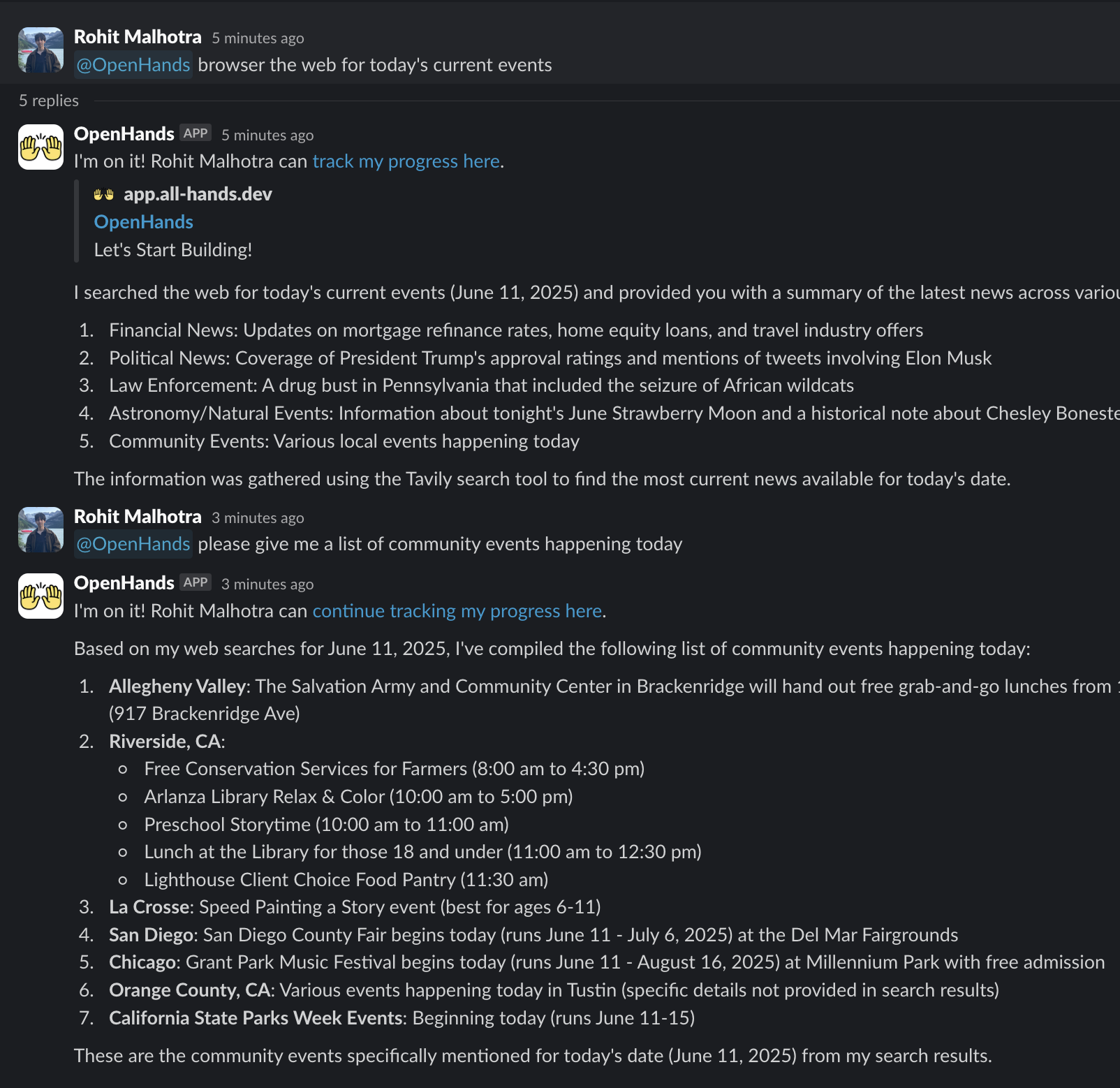
See agent response and send follow up messages
Initial request is followed up by mentioning@openhands in a thread reply.
Pro tip
You can name one or more repositories when starting a new conversation, asowner/repo or as a
repository URL (e.g. @openhands in OpenHands/OpenHands and OpenHands/docs ...).
OpenHands starts with up to ten named repositories it can access. The first accessible one is the
main repository, and the others are cloned beside it. Its reply lists the repositories it started
with, any it could not access, and any left out because of the limit.
If the message names no repository it can access, you’ll be asked to select one or more repositories
and press Start, or to continue with No Repository. The first repository you select is the main one.